
Help centreFitVantage for GymsClasses
Build your timetable
Add each class once and it repeats every week. Members book it in the app, and your staff take the roll.
- Open Timetable and choose Add a class.
- Give it a Name and, if you like, a Description. Members see the description in the app.
- Choose the Instructor (a coach, manager or owner on your staff) and the Type.
- Under Runs, choose Every week and pick the days, or Once and pick the date.
- Set Starts, Ends and Spots (up to 500). With more than one location, choose the Location, or leave it blank to show the class at every location.
- Booking opens is how many days ahead members can book: 7 unless you change it. Press Add class.
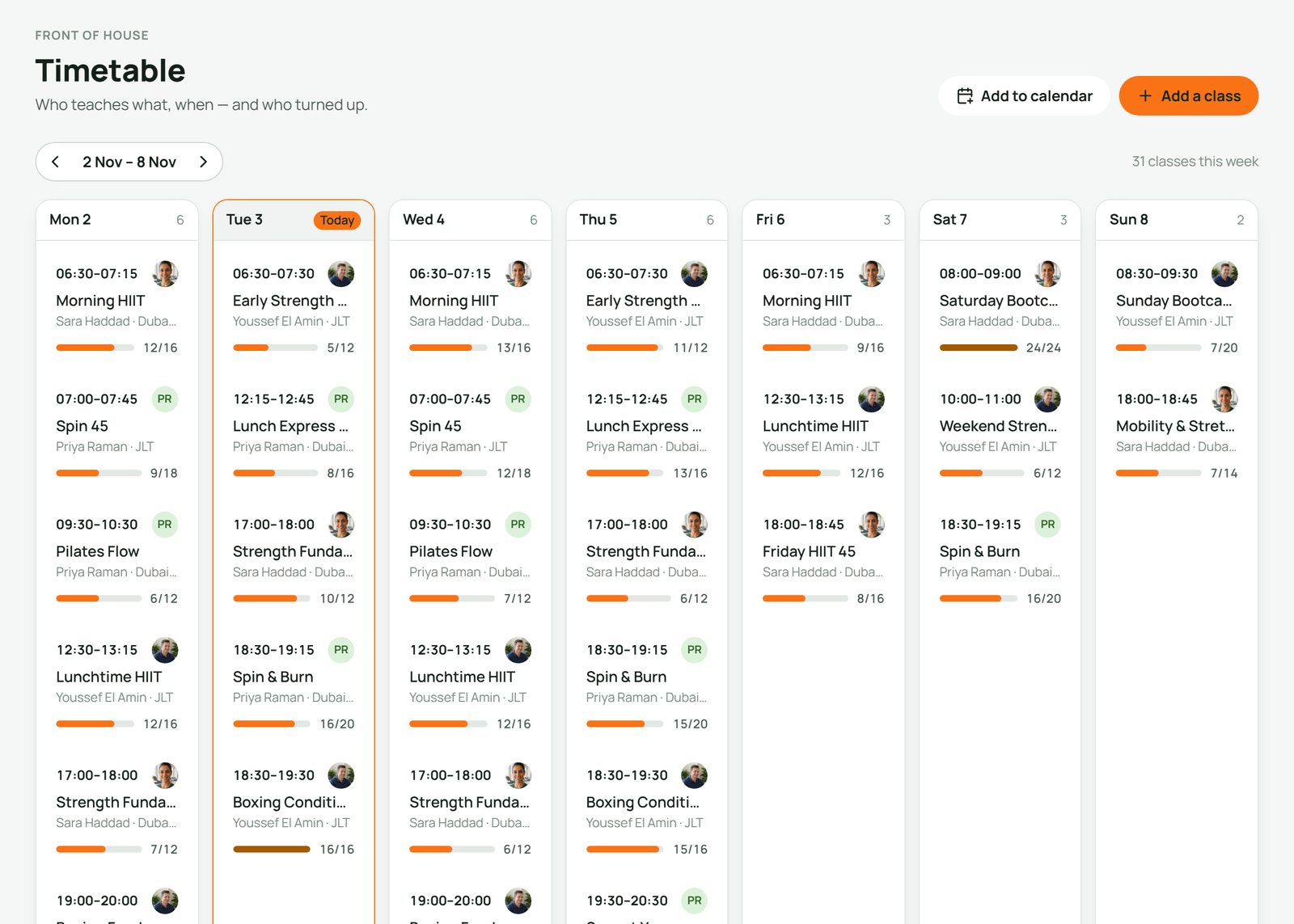
Use the arrows to move between weeks, and This week to come back. Click a class to take the roll, book a member in or edit it.
Changing or stopping a class
- Change it: click the class, open Edit, and press Save.
- One date off (instructor ill, a holiday): on the Roll call tab, choose Call off this date only…, add a reason members will see if you like, and press Call it off. Everyone booked is told and any class credit comes back. The class stays on for its other days.
- For good: on Edit, choose Take off timetable. Everyone booked from today on is told, class credits come back, and the waiting list is cleared.
Who can do what
Owners and managers add and change classes. Front desk and coaches see the timetable, take the roll and book members in. Viewers can only look. Members book in the app: see Book a class or join a waiting list.
Related
Still stuck? Talk to us.
We reply in English.
- Call or WhatsApp
- +971 55 582 0061 · WhatsApp
- Hours
- Monday to Friday, 9:00 to 17:00 (UAE)
- Company
- FIT - VANTAGE FZCO · DSO-IFZA, IFZA Properties, Dubai Silicon Oasis, Dubai, UAE