
Help centreFitVantage for CoachesPlans
Meal plans and the dish library
Build a day-by-day meal plan from the dish library and see each day against your client’s calorie and macro target. Meal plans are everyday eating guidance, at a lifestyle level.
- Open Meal Plans and choose Add Meal Plan, or choose Meal Plan on the client’s record.
- Give the plan a name and a description, and pick the client. Their allergies, diet and intake show. Switch on Recommend matching dishes to list the dishes that suit them first.
- Set their Daily nutrition target, or choose Use suggestion, then Save target.
- Choose the start date, the Plan length (1, 7, 10, 15 or 30 days, or your own) and the Meal types in this plan. Set these first: changing them later clears the dishes.
- For each day and meal, choose Add Dish, then the dish and the quantity. Each day shows its calories and macros against the target.
- Choose Next, add your do’s and don’ts, and choose Submit.
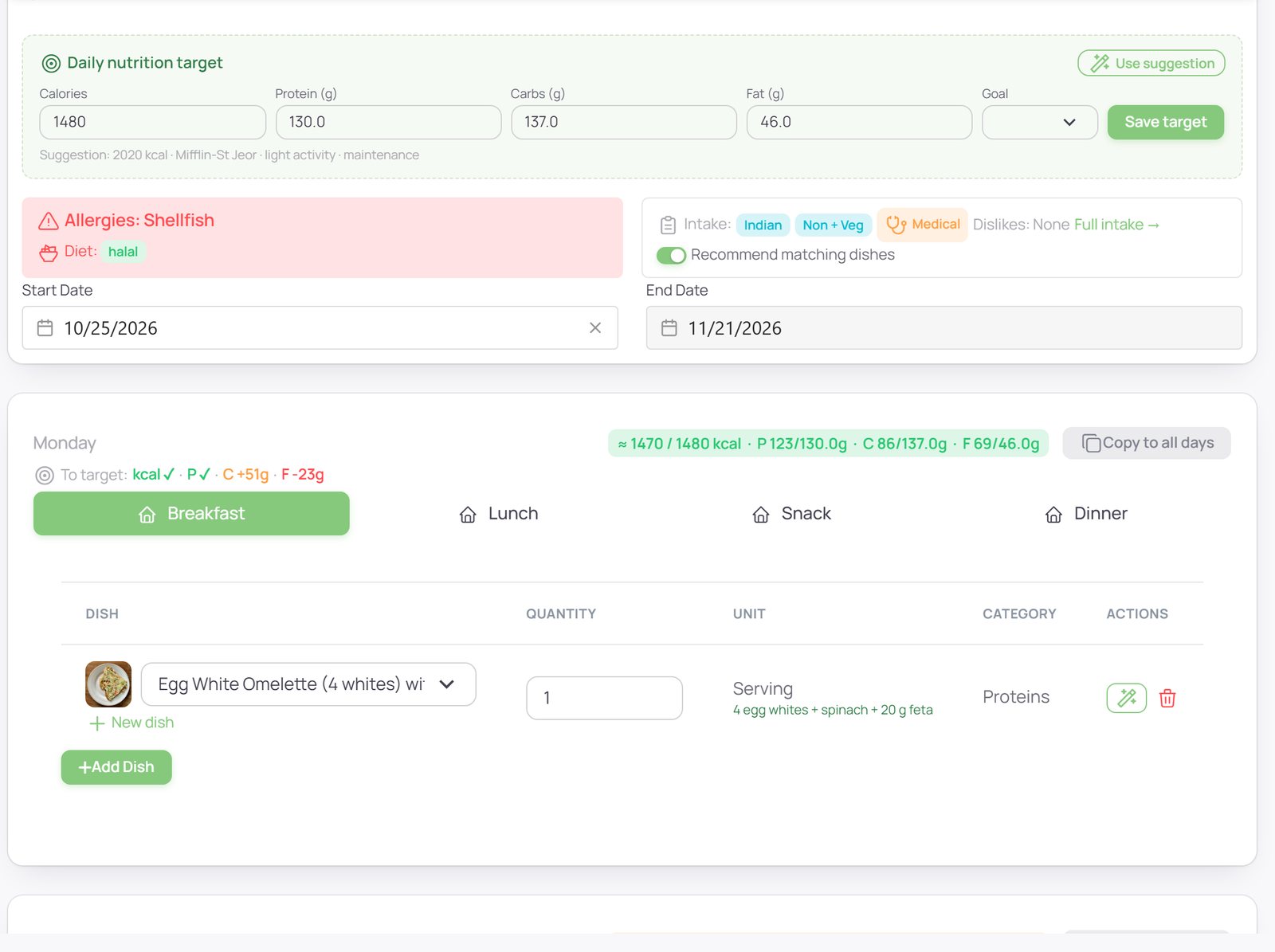
The plan shows in your client’s app straight away. When you edit a plan later, Copy to all days copies one day to the rest.
The dish library
- Dishes lists FitVantage’s dishes, marked FitVantage, and your own. Use FitVantage’s in any plan; only your own can be changed.
- Add Dish: name, unit, category, cuisine, nutrition per serving, a photo, and a recipe with prep time, ingredients and tips. Or choose New dish while you build a plan.
- Needs nutrition only finds dishes missing calories or ingredients. Those show no macros in plans and are left out of the shopping list and swaps.
- Shopping list: the cart icon on Meal Plans lists what the plan needs, ready to print.
- Photos: FitVantage’s dishes come with a photo, and your client sees dish photos with their meals.
Related
Still stuck? Talk to us.
We reply in English.
- Call or WhatsApp
- +971 55 582 0061 · WhatsApp
- Hours
- Monday to Friday, 9:00 to 17:00 (UAE)
- Company
- FIT - VANTAGE FZCO · DSO-IFZA, IFZA Properties, Dubai Silicon Oasis, Dubai, UAE